
Using templates
85 verified templates for Shopify Flow, ERP integrations and schedules: browse, preview, grant and use, and save your own.
Templates are ready-made functions you start from instead of writing code from scratch. There are 85 verified templates by Code Creation Labs, 29 of them for ERP and warehouse integrations. Every template becomes your own function that you can change.
The gallery
Open Templates in the app navigation. Each card shows:
- the category (Inventory, Products, Orders, Fulfillment, Files, Storage, Customers, Discounts, Notifications, Utilities),
- how it runs: ERP (called from your ERP or any system over the API), Scheduled, or the Shopify Flow trigger it is made for,
- the permissions it needs, and whether you have them,
- the secrets it reads, for example an ERP URL and key.
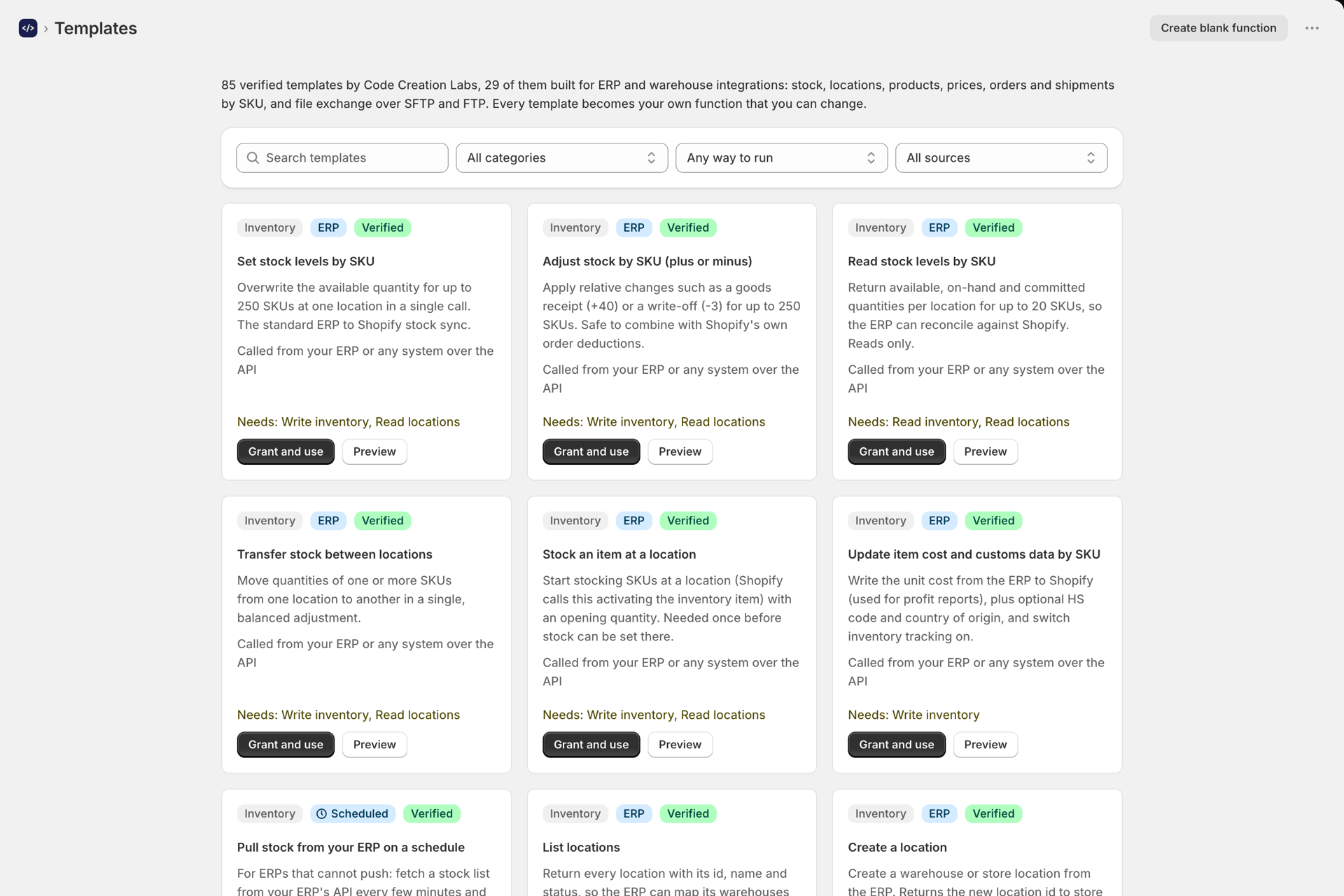
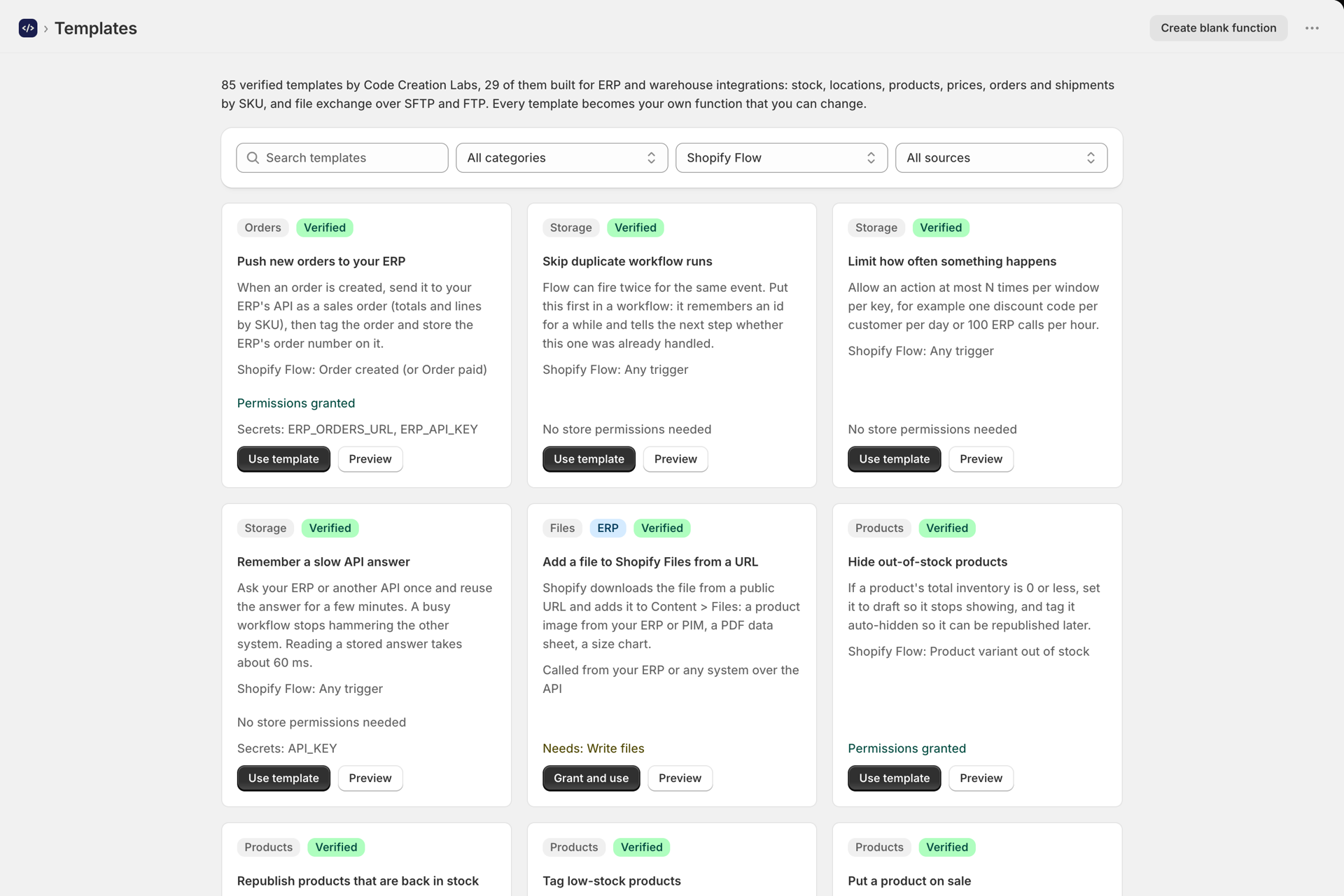
Filter by how it runs to see only the templates for Shopify Flow, for your ERP, or for a schedule:
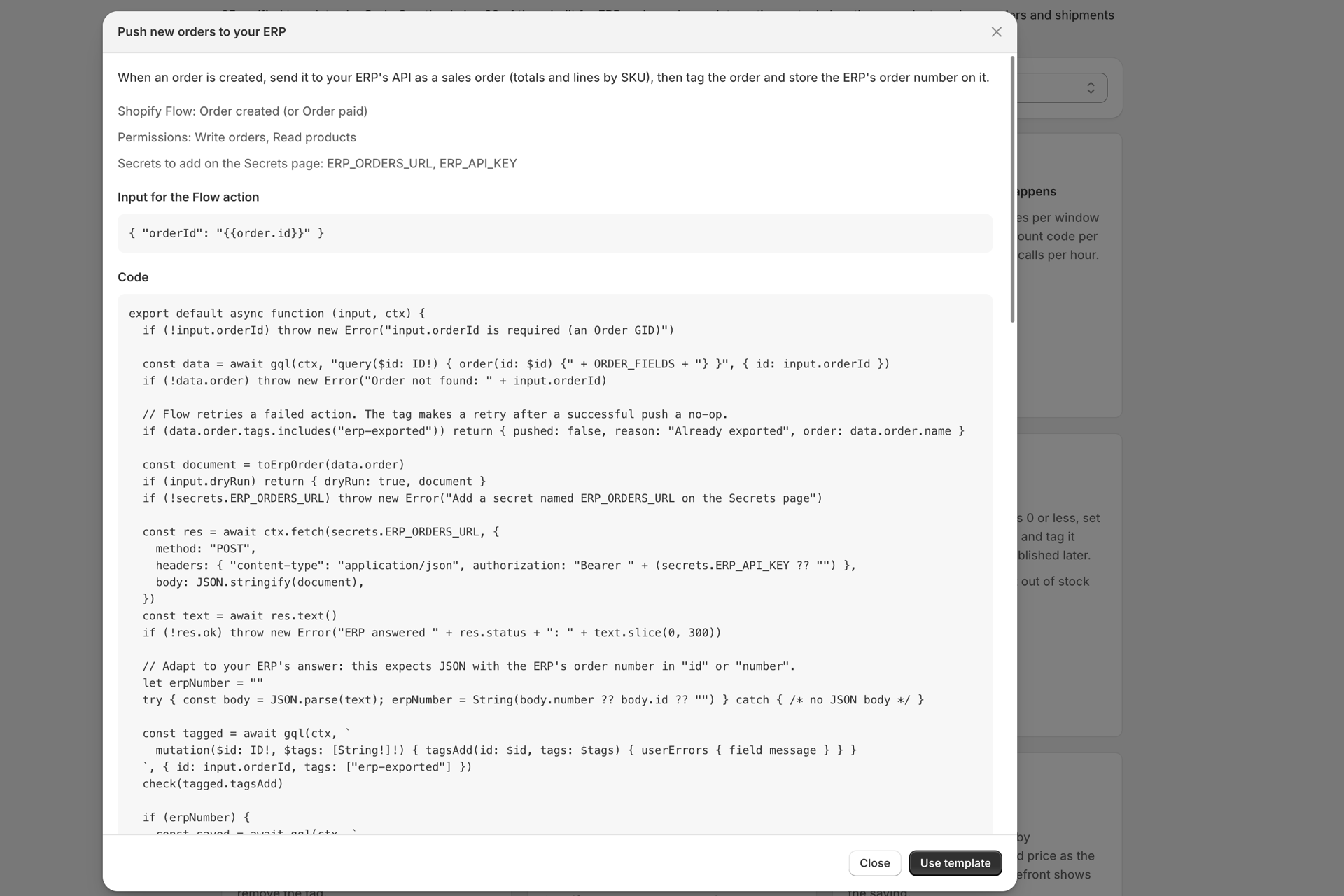
Preview before you use
Preview opens the template with its description, the Flow trigger or schedule it is made for, the permissions and secrets it needs, the sample input, and the full code.
Using a template
Select Use template - or Grant and use when it needs a permission you have not granted yet. Shopify's permission dialog comes first; the function is created only once the permission is granted, so it can run right away.
The new function opens in the editor with the template's sample input as test variables. Templates that write data have a dryRun switch in that sample, so the first test changes nothing. A template made for a schedule brings its suggested schedule, switched off until you turn it on.
Saving your own template
On a saved function, select Save as template and give it a name, description, category and the permissions it needs. Your templates are private to your store and appear in the gallery under the My templates source. Only the code is saved - never your secrets or data.
Next steps
- How to create a function - the editor and everything a function can do.
- Connect your ERP or warehouse system - the ERP templates in practice.
- Permissions and store data access - the access a template needs.