
Permissions and store data access
Manage per-resource read and write permissions for Shopify Flow functions, and see what revoking a scope does to running workflows.
Functions can read and modify your store's data through the Shopify Admin API, but only for the resources you explicitly grant. This page covers the Permissions page, how access is granted per resource, and what happens to your functions when you revoke a permission.
When a function needs permissions
A function needs permissions only if it calls ctx.shopify.graphql(...). To use that, two things must be true:
- The function has Needs Shopify data turned on (Settings tab of the editor).
- The resource it touches is granted on the Permissions page.
Functions that only compute values, call ctx.fetch, or read input need no permissions at all.
The Permissions page
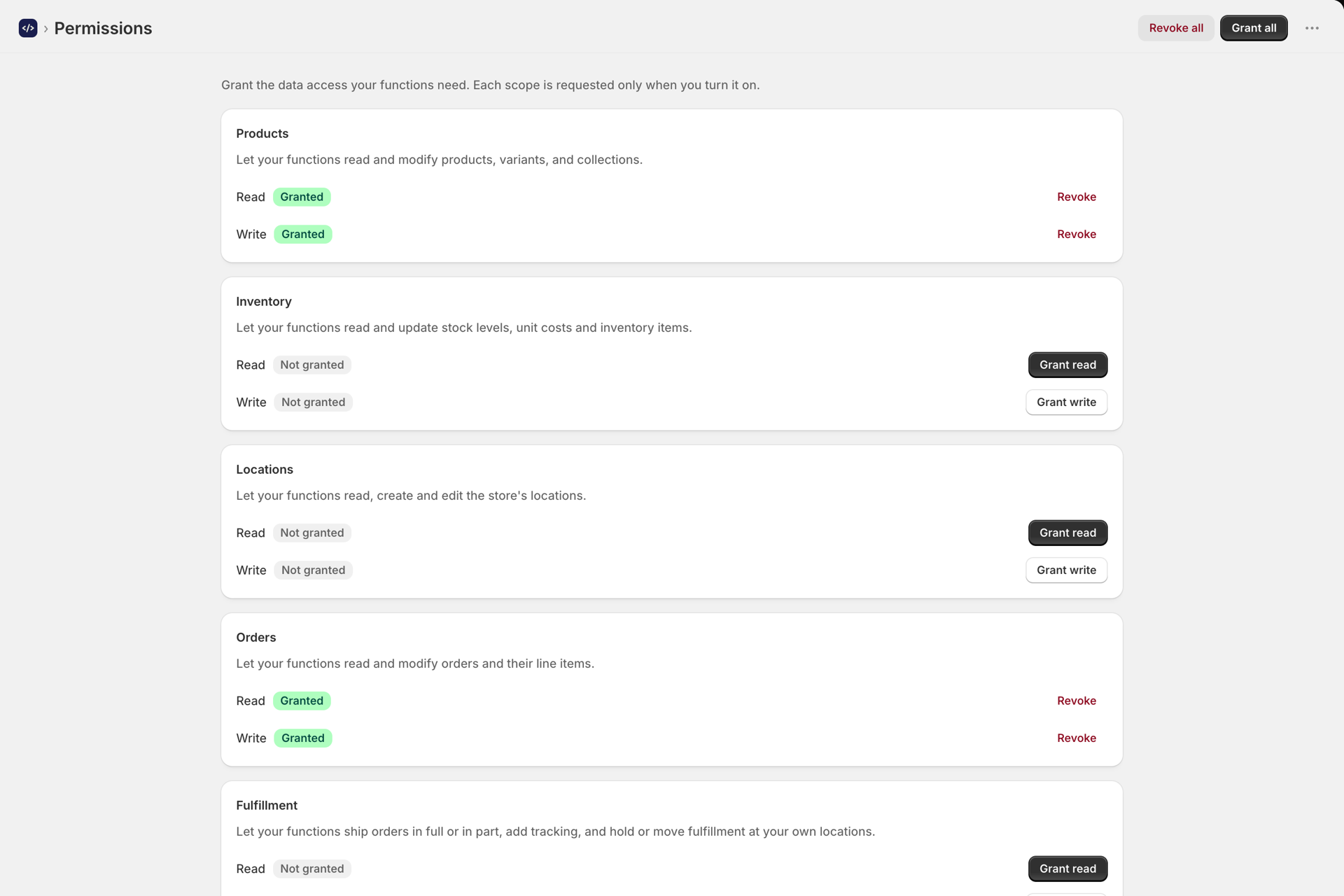
Open Permissions in the app navigation. You get one card per resource:
- Products - products, variants, and collections
- Inventory - stock levels, unit costs and inventory items
- Locations - the store's locations
- Orders - orders and their line items
- Fulfillment - shipping orders in full or in part, tracking, holds and moves, at locations you manage yourself
- Customers - customers
- Discounts - discounts and discount codes
- Files - files in Content > Files, for publishing reports
Each card has two grant buttons:
- Read (primary) - the function can query the resource.
- Write (secondary) - the function can create or update the resource. Granting write also confers read, the same way Shopify's scopes work.
When a permission is granted, the card shows its status and a red Revoke link. Grant all at the top grants every permission in one Shopify dialog.
The page adapts to what your app offers. It shows exactly the optional scopes Shopify reports for your install, so the set of cards always matches what you can actually grant.
Granting a permission
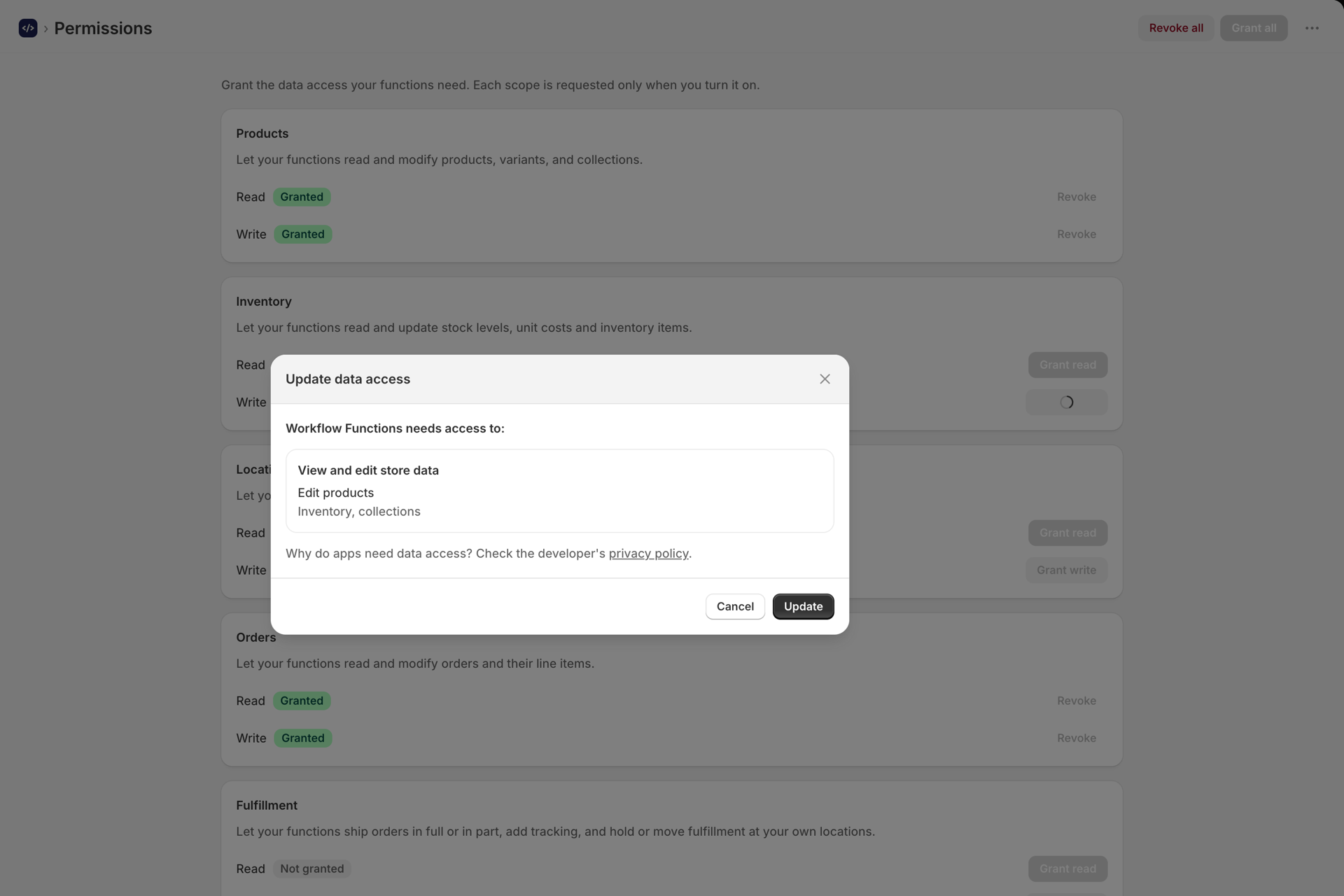
Click Read or Write on the resource card. Shopify shows its standard permission dialog; approve it there. The grant takes effect immediately, and any function that was disabled only because it was waiting on that permission is re-enabled automatically.
Grant the narrowest access that works: if your functions only read products, grant Read products and leave Write off.
How your access token stays safe
Functions never receive your store's Admin API access token. When a function calls ctx.shopify.graphql(...):
- The runtime mints a short-lived token that is valid only for that single run.
- Your code sends its query to a server-side proxy using that short-lived token.
- The proxy holds the real Admin token, runs the query, and returns only the result.
The real token stays on the server the whole time. It is never in your input, your logs, or the sandbox. Shopify independently enforces the scopes you granted, so a query for data you have not granted returns an access-denied error rather than the data.
Revoking a permission
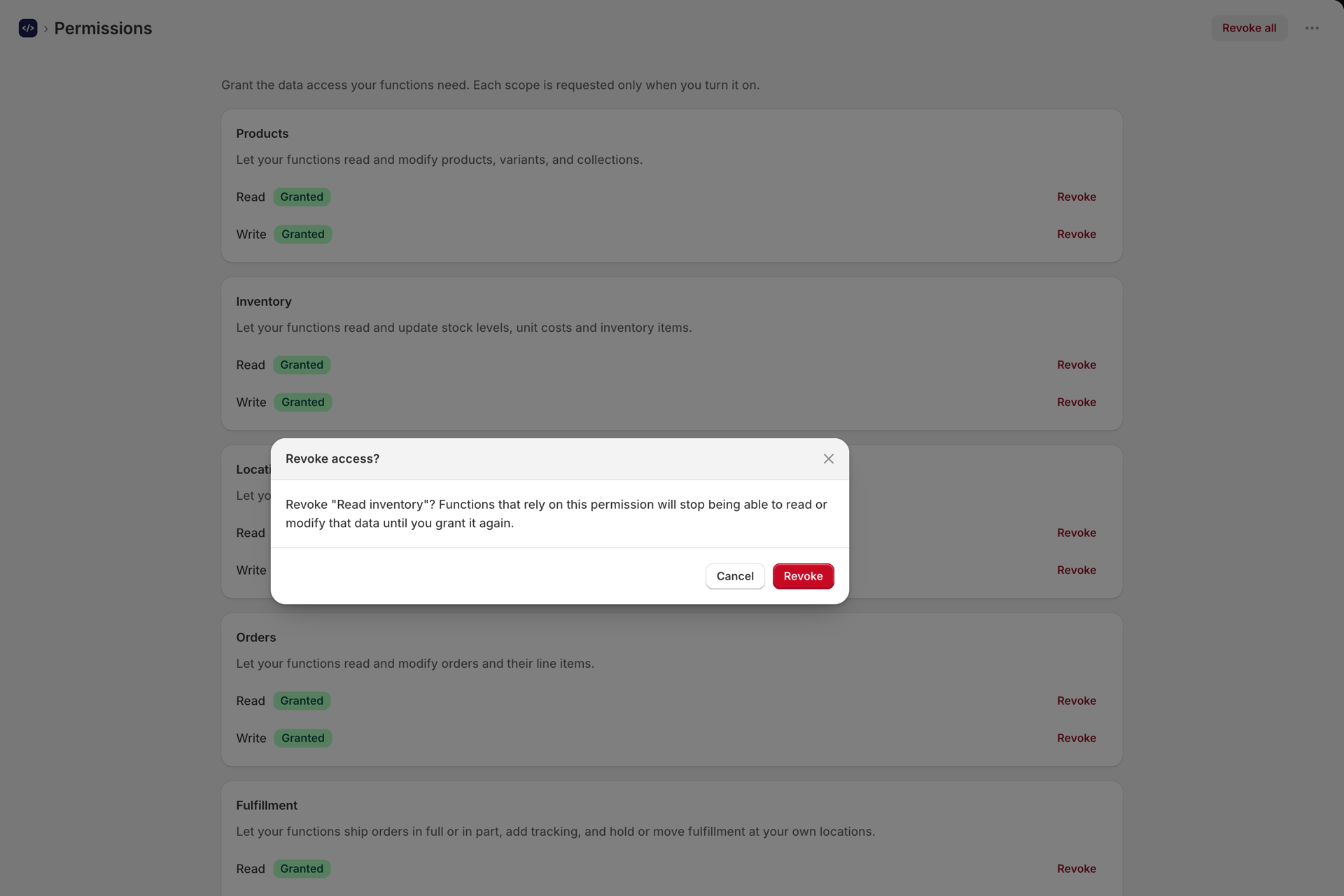
Click Revoke on a resource card. Because revoking can break functions, you are asked to confirm in a dialog that lists every enabled function that uses the permission. Those functions will be disabled.
On confirm:
- The permission is revoked with Shopify.
- Each function that used it is disabled and marked with a reason.
- If you later grant the permission again, the functions that were auto-disabled for that reason are re-enabled.
A disabled function shows a banner in its editor telling you which permission is missing, with a link straight to the Permissions page.
Auto-disable keeps Flow safe
Permissions can also be revoked outside the app (from your Shopify admin's app settings). When that happens, Workflow Functions receives Shopify's scope-update notification and runs the same reconciliation: functions that depend on a now-missing permission are disabled so they fail safely in Flow instead of erroring unpredictably.
Each function tracks the scopes it actually uses. That set is seeded from a template's requirements when you create from one, and grows automatically as the function runs queries, so the disable and re-enable logic always reflects real usage.
A note on customer data
At launch, functions do not have access to customer personal information such as name, email, or address. The curated templates avoid those fields. Read customers covers non-PII customer data only.
Next steps
- How to create a function - turn on Needs Shopify data and call the Admin API.
- Creating and using secrets - store credentials for external APIs.
- Run history and troubleshooting - see why a run failed, including access errors.