
Set up the Run Function action in Shopify Flow
Connect a function to a Shopify Flow workflow end to end: trigger, Run Function action, input, configuration page, a real run and its history.
This walkthrough connects a function to a workflow in Shopify Flow, end to end: from the trigger to a real run you can inspect. The example sends every new order to an ERP with the verified template Push new orders to your ERP, with dryRun on so nothing is sent while you set it up.
Step 1: Choose a trigger
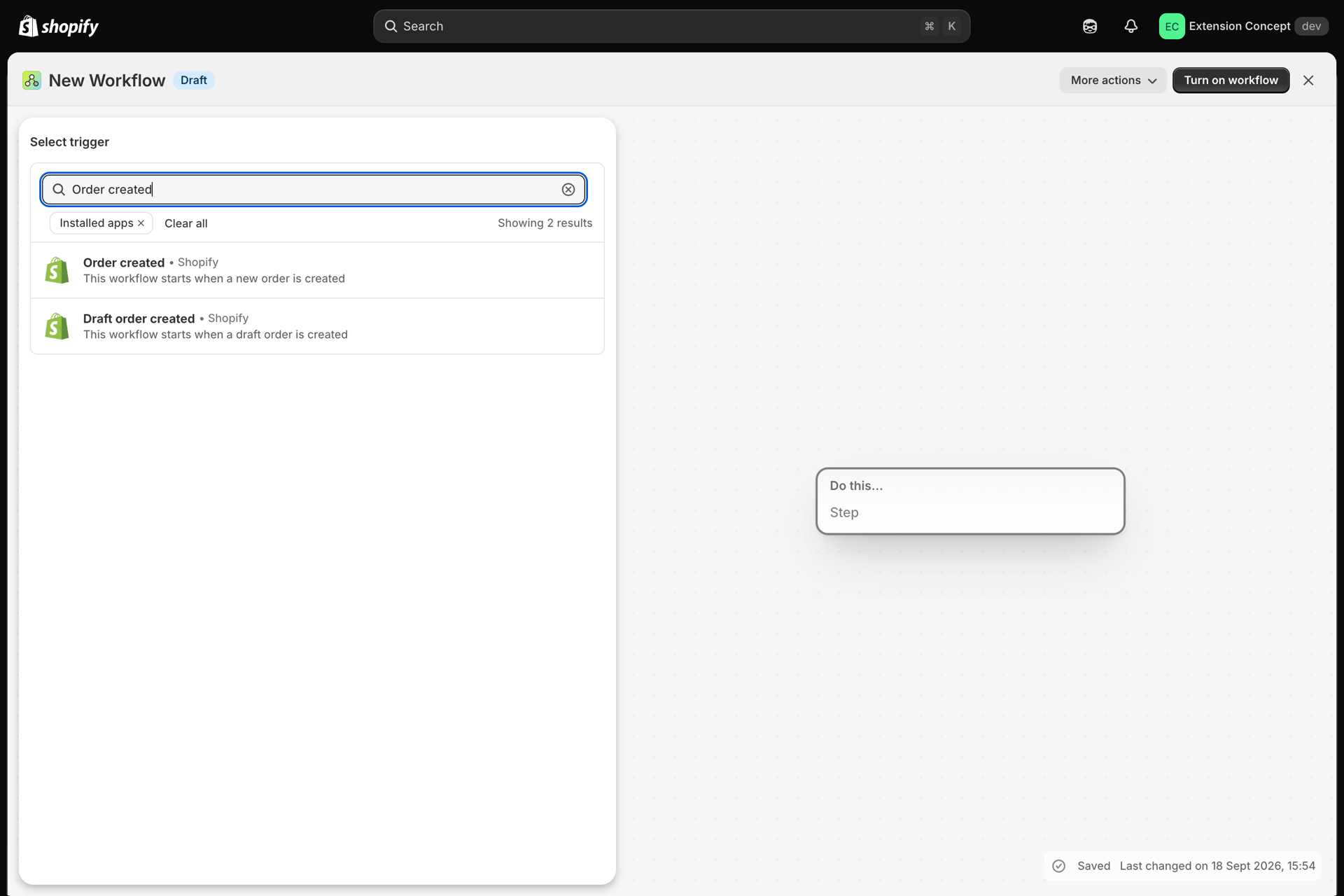
In your Shopify admin, open Flow, select Create workflow, then Select a trigger. This example uses Order created; any trigger works.
Step 2: Add the Run Function action
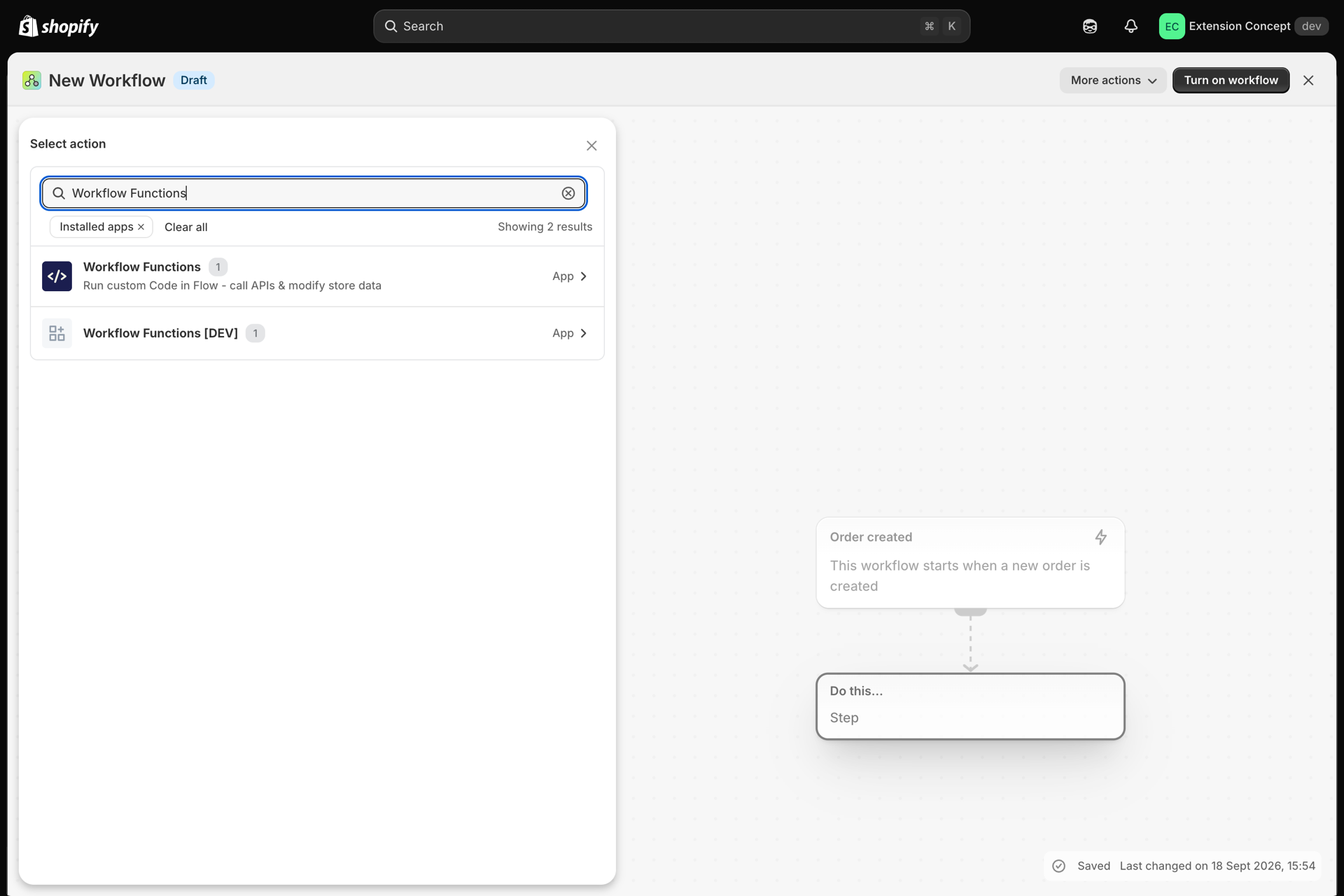
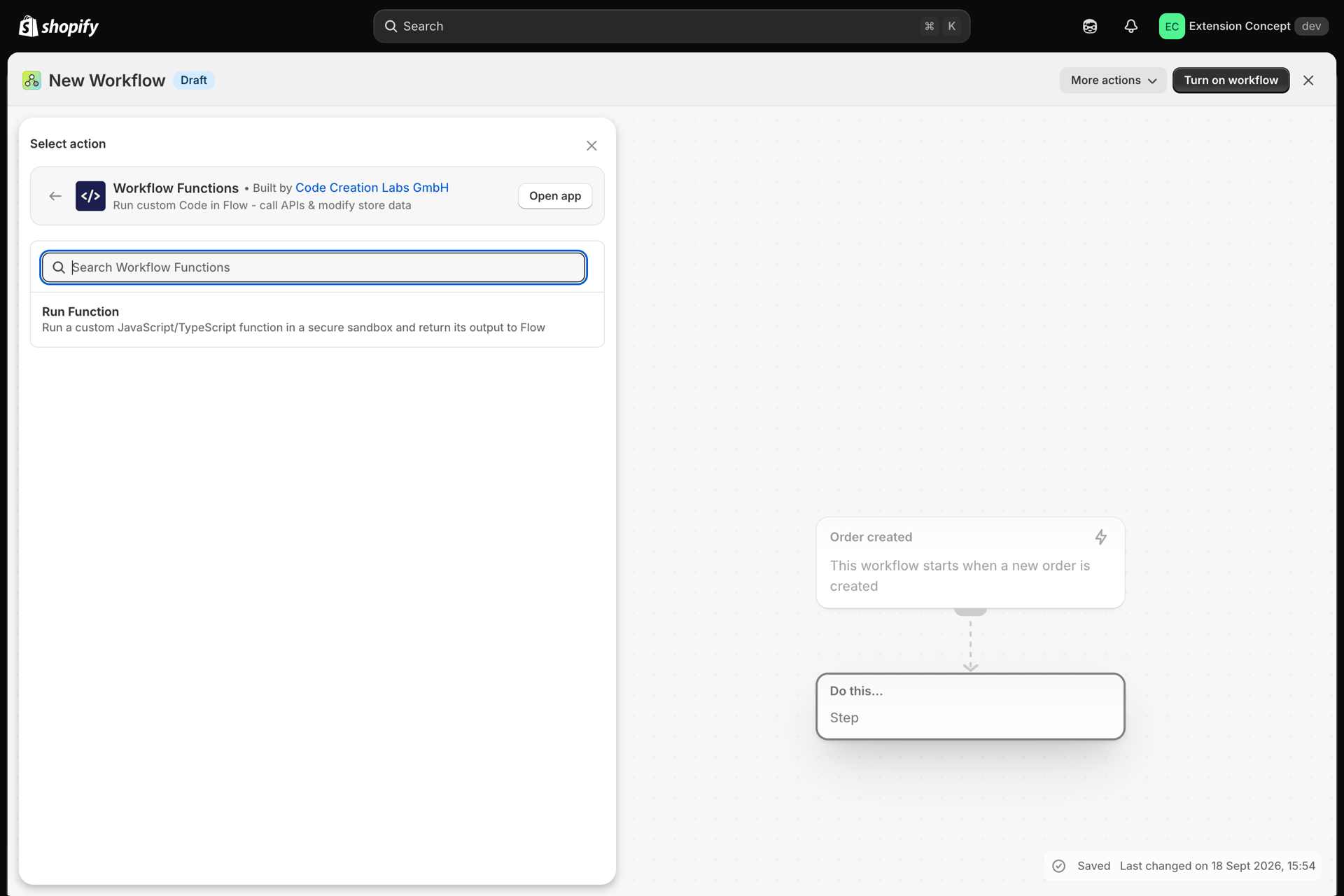
Select the + under the trigger, choose Action, then Workflow Functions, and select Run Function.
Step 3: Set the input
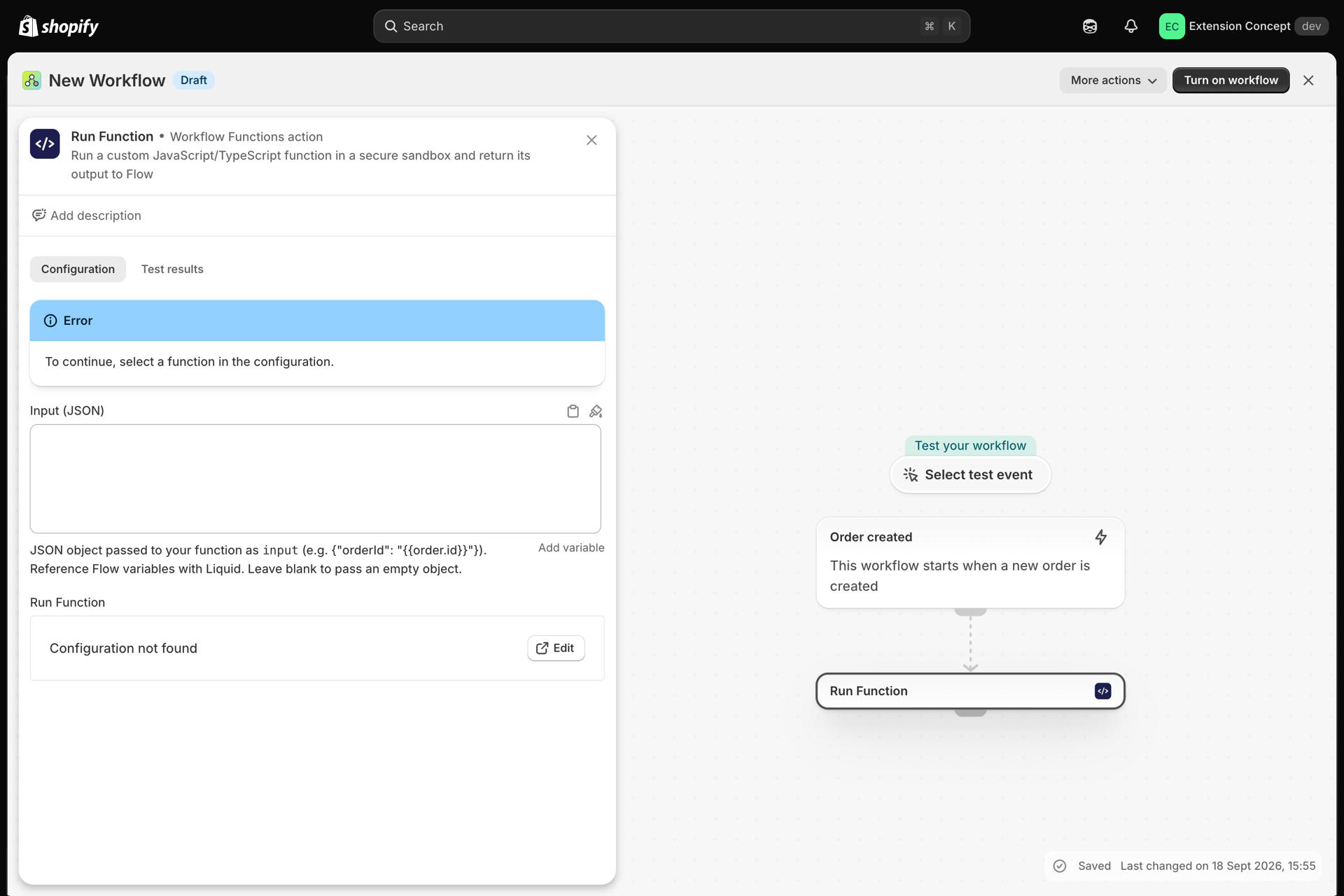
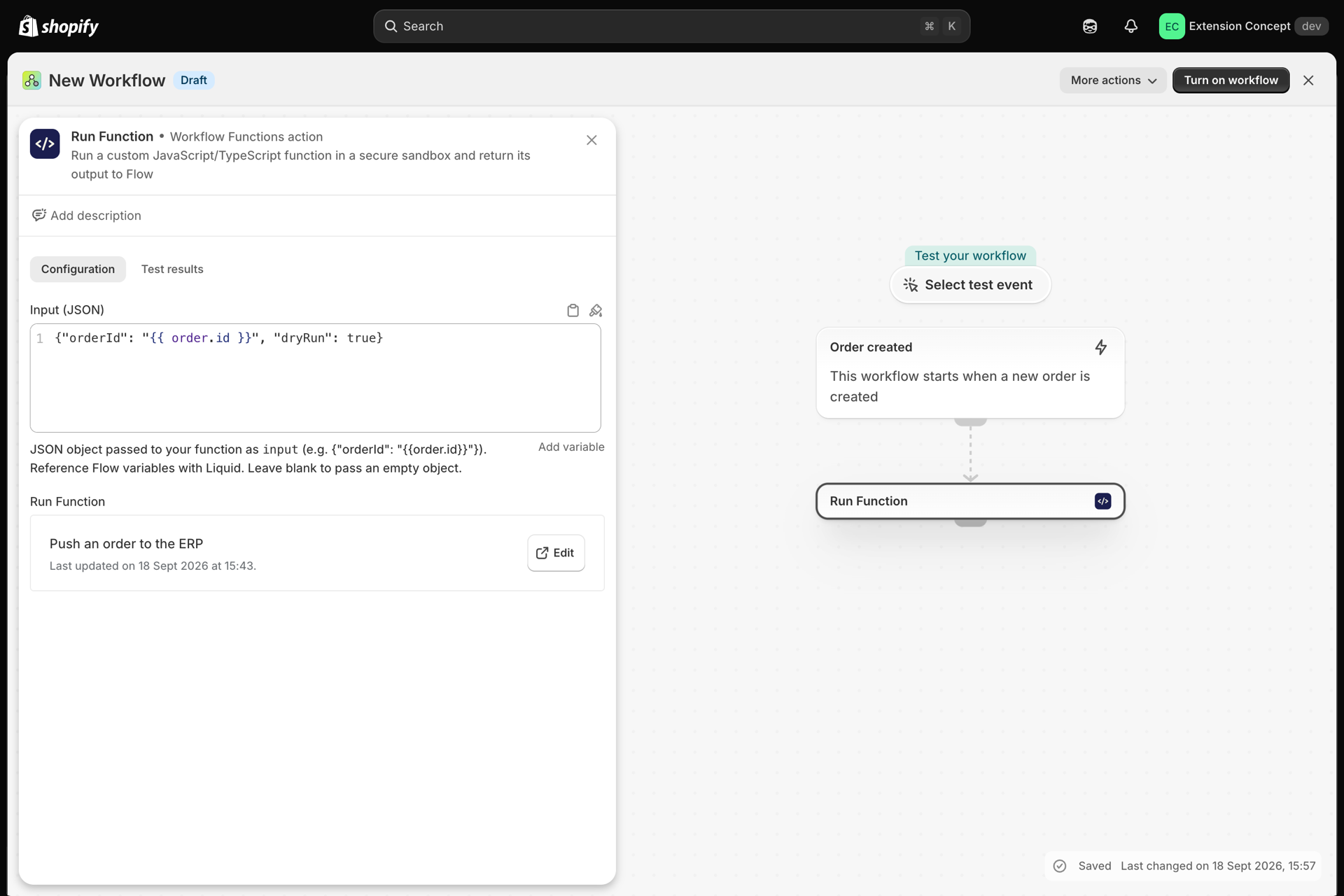
The action has an Input (JSON) field. It becomes input in your code. Insert Flow variables with Liquid - here the id of the new order - and leave dryRun on while you test:
{"orderId": "{{ order.id }}", "dryRun": true}Until you pick a function, the action shows To continue, select a function in the configuration. See Passing variables into your function for lists, quoting and invalid JSON.
Step 4: Choose the function
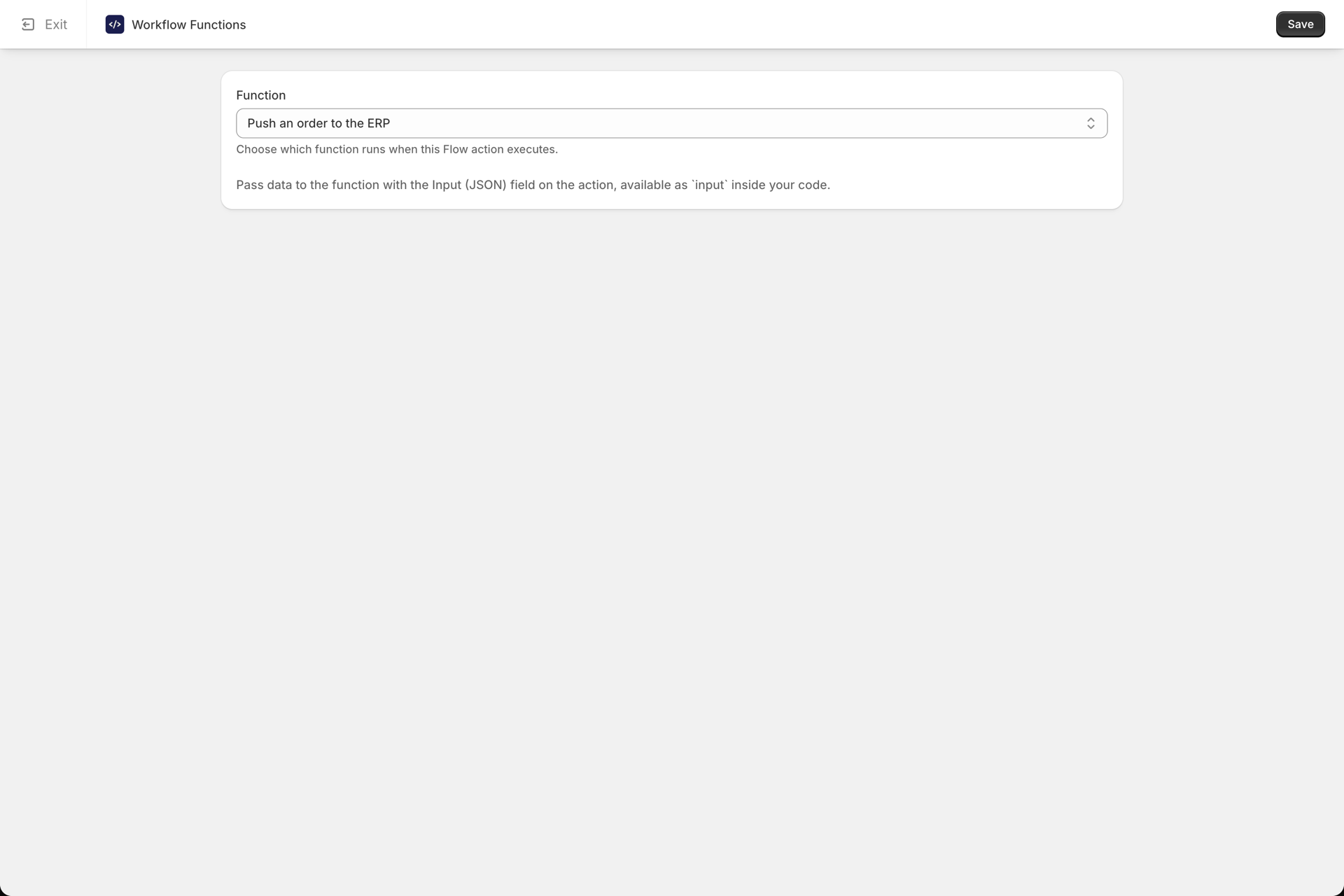
Select Edit next to Run Function. The Workflow Functions configuration page opens: pick the function from the list, select Save, then Exit to return to the workflow.
Step 5: Turn it on and run it for real
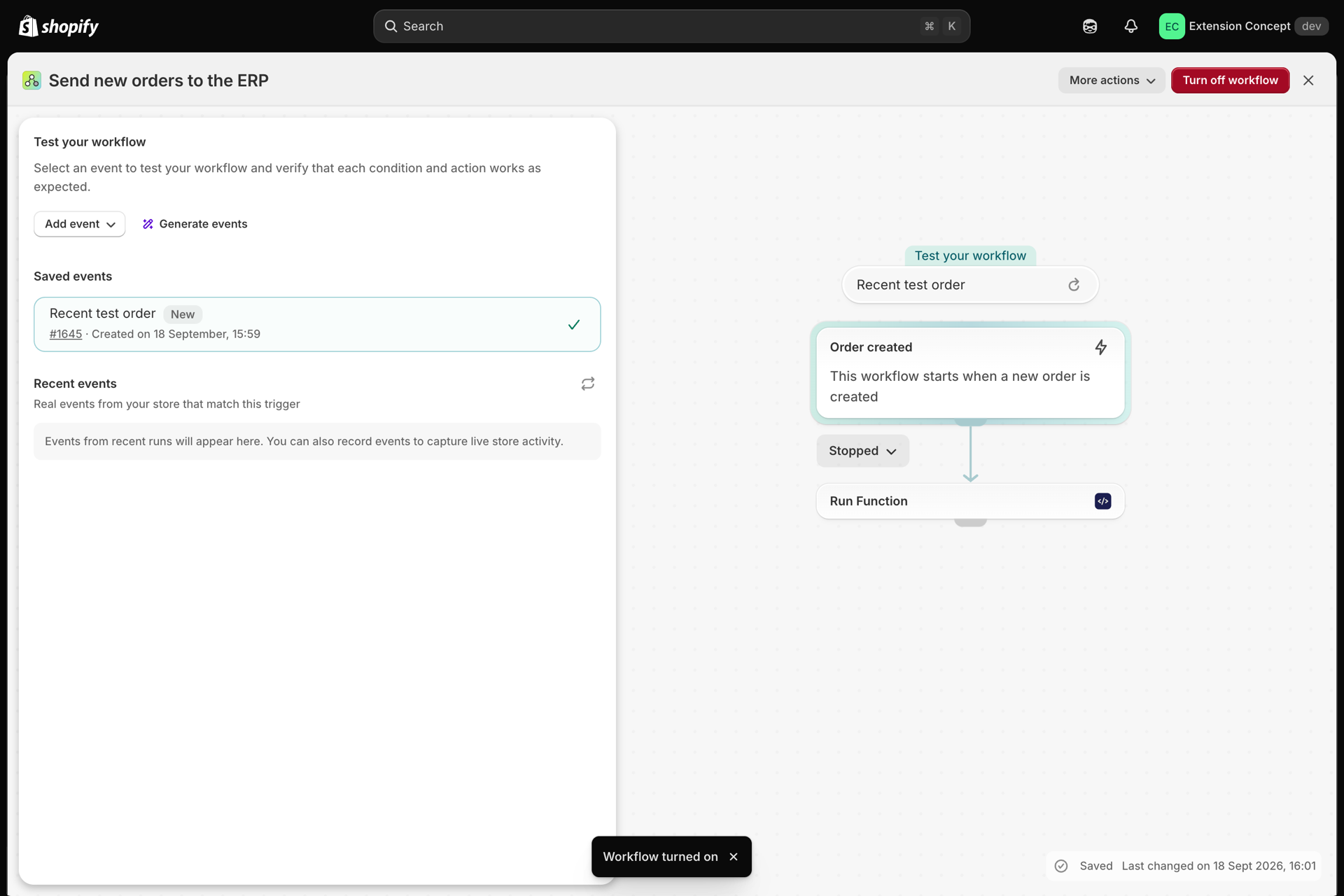
Name the workflow and select Turn on workflow.
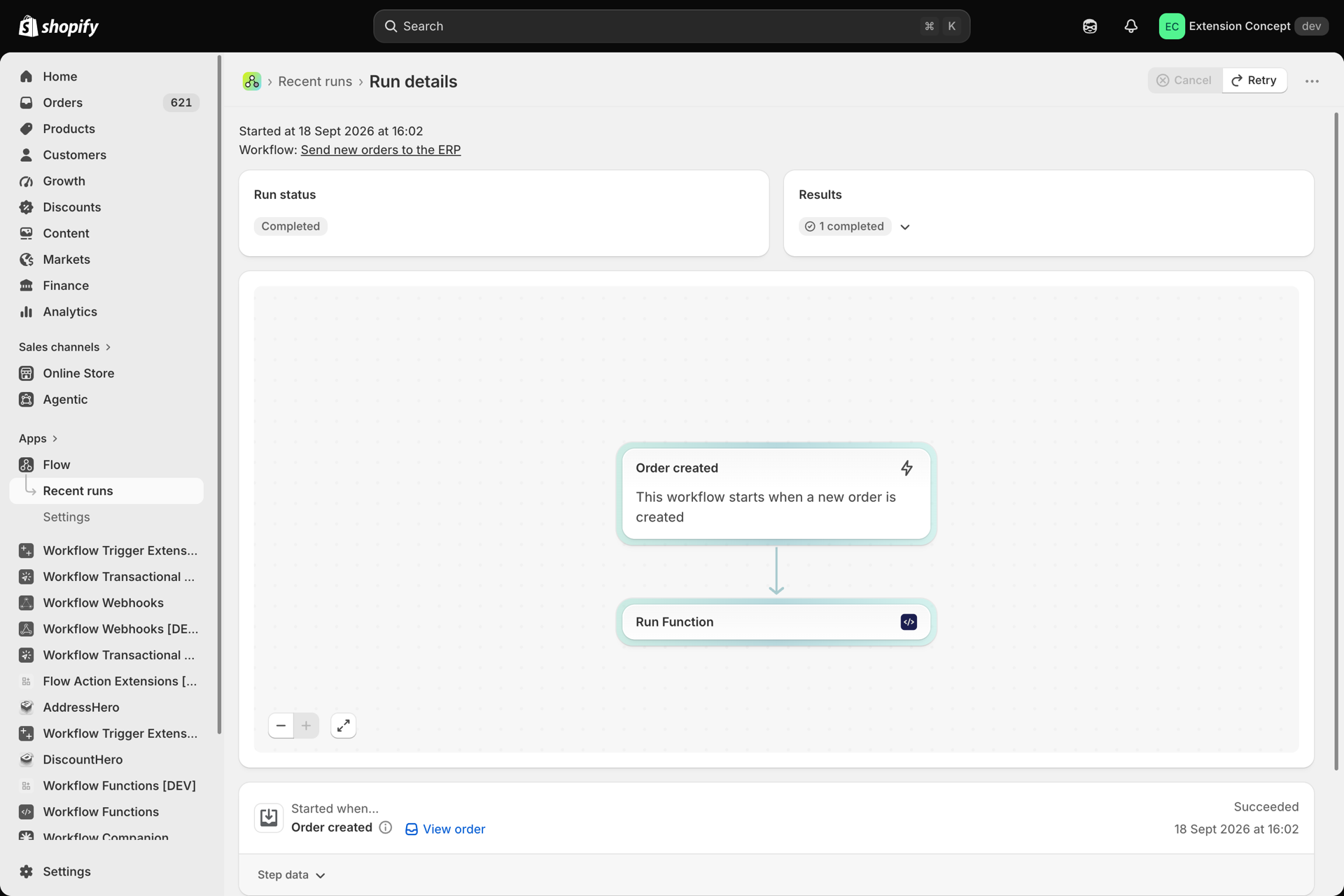
Flow's Test your workflow can replay an existing order, but it only simulates app actions - Run Function shows Can't access the returned data there and does not run. To see a real run, trigger the workflow: here, by creating a test order.
Step 6: Check the run in the app
Open History in Workflow Functions. The run appears with the trigger Flow. Open it to see the input Flow sent, the output, logs and timing.
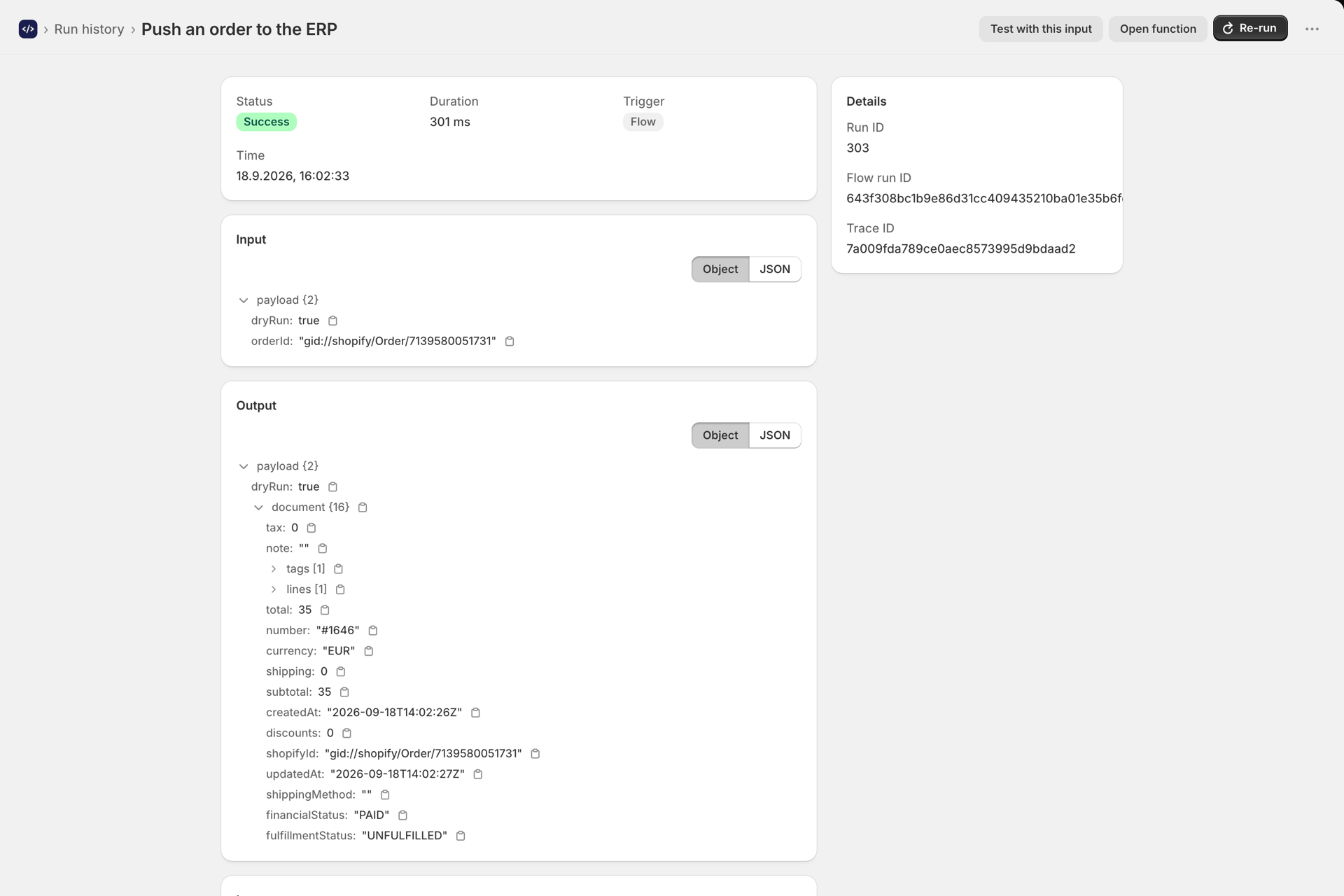
When the output looks right, remove "dryRun": true from the Input (JSON) and add the secrets the template reads (ERP_ORDERS_URL, ERP_API_KEY).
What the action returns to Flow
| Field | What it holds |
|---|---|
status |
SUCCESS |
output |
Your return value as JSON text |
fields |
One entry per top-level key of the returned object, each with key and value, so later steps can use single values without parsing JSON |
durationMs |
How long the run took, in milliseconds |
Return a flat object with the values you want to use later, for example { "tier": "gold", "total": 129.5 }. Flow limits an action's result to about 49 KB; when the output is too large for both, fields is left out and output still carries everything. The editor's test bench warns you before that happens.
When a run fails
If the function throws, times out or is disabled, the action fails and the workflow stops on that branch with the function's error message. Common causes:
No function configured for this action
Open the action configuration and select a function.
The configured function no longer exists
The function was deleted. Select another one.
A function is disabled
Enable it on the function's Settings tab, or grant the permission it needs.
Plan limit reached
You have used your rolling 30-day run quota. Upgrade your plan.
This account has been suspended
Contact support.
Every attempt is recorded in History with its input, output, logs and error. See Run history and troubleshooting.
Retries do not run twice
If Flow retries the same action execution, the app returns the result of the earlier successful run instead of running your code again - no second charge to your plan and no repeated side effects. A new trigger is a new run.
Turning a function off
Turn Enabled off on the function's Settings tab: the workflow keeps running, and the Run Function step reports an error until you enable it again. To stop everything, turn the workflow off in Flow.
Next steps
- Passing variables into your function - the Input (JSON) field in detail.
- Creating and using secrets - API keys your code uses.
- Run history and troubleshooting - debug a failing run.