---
title: "How to get a Google Gemini API key - Workflow Functions"
description: "Create a Google Gemini API key and connect it to Workflow Functions to write functions with AI."
canonical: "https://docs.workflow-functions.app/get-gemini-api-key"
---
# How to get a Google Gemini API key
To use **Write with AI** with Google Gemini, connect your own Gemini API key. It takes a minute.
## Create the key
1. Open **Google AI Studio** and sign in with your Google account: aistudio.google.com.
2. Open **Get API key** - direct link: aistudio.google.com/apikey.
3. Select **Create API key**, choose or create a Google Cloud project, and **copy the key** - it starts with `AIza`.
4. For more than the free tier's limits, turn on billing for that project in Google AI Studio - generation is billed to your Google account.
## Connect it
1. In your Shopify admin, open **Workflow Functions -> Developer -> Connections**.
2. Paste the key into the **Google Gemini** card and select **Save key**. The key is checked with Google before it is saved.
3. Pick a default model. The list is Google's own list for your key.
Your key is encrypted and used only for generation - it is never shown again and never runs inside your functions. Then open a function and select **Write with AI**.
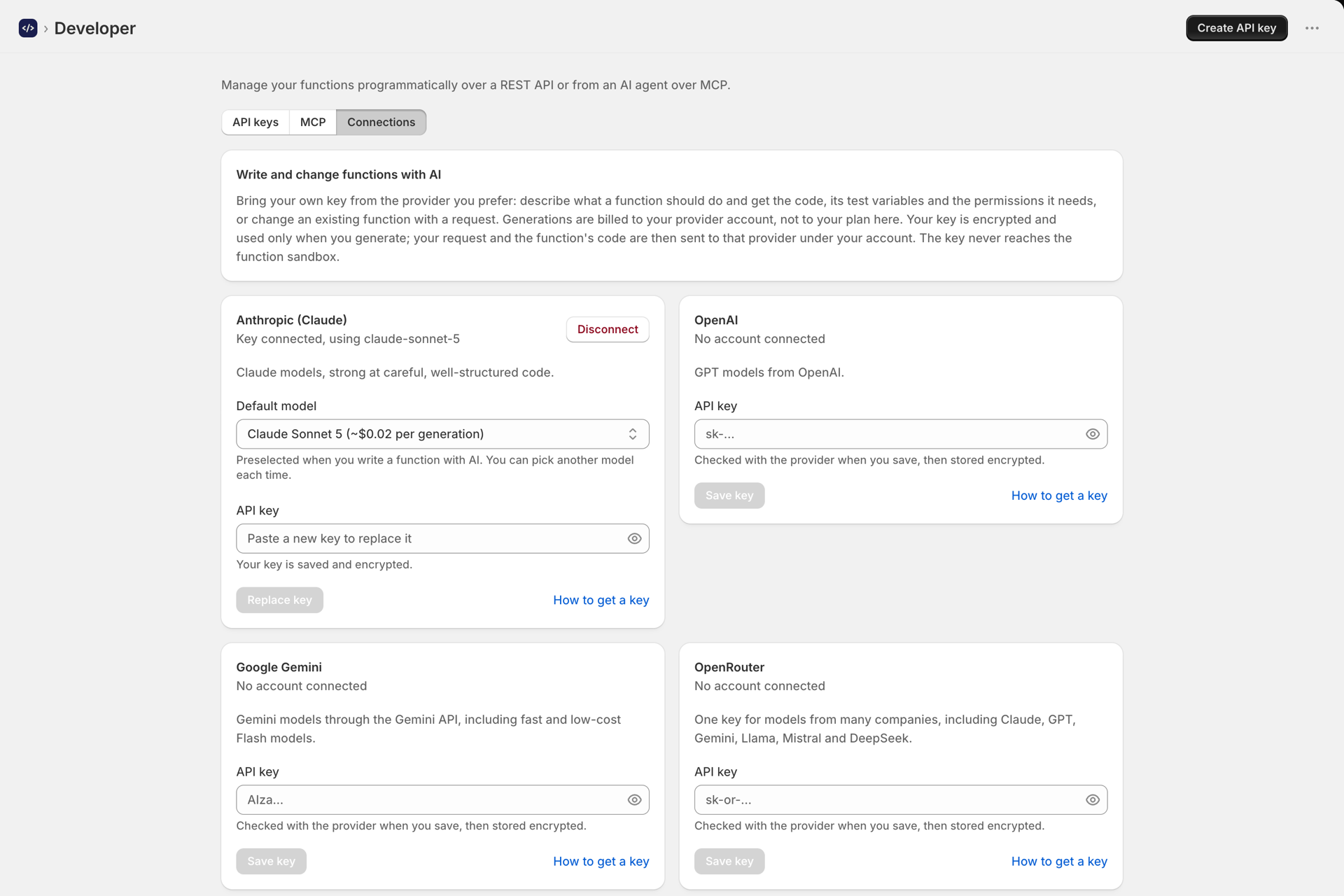
*Developer, Connections: one card per AI provider.*
Generation is billed to your own Google account, not your Workflow Functions plan. See [Generate functions with AI](https://docs.workflow-functions.app/generate-with-ai.md).